Check words from the reading view
Double-click on desktop or press and hold on mobile to open the dictionary.
POPUP DICTIONARY
An unfamiliar word can interrupt a good book. You open another website, look it up, then return to the page and find your place again. BlueReader's popup dictionary keeps word lookup closer to your reading.
LOOK UP A WORD
Use it to check meanings while reading an EPUB. Words you want to revisit can go into your vocabulary collection for review later.
In BlueReader, you open the dictionary directly from the book while reading.
When the popup opens, you can read the definition, save the word if needed, and return to the book.
EXAMPLE
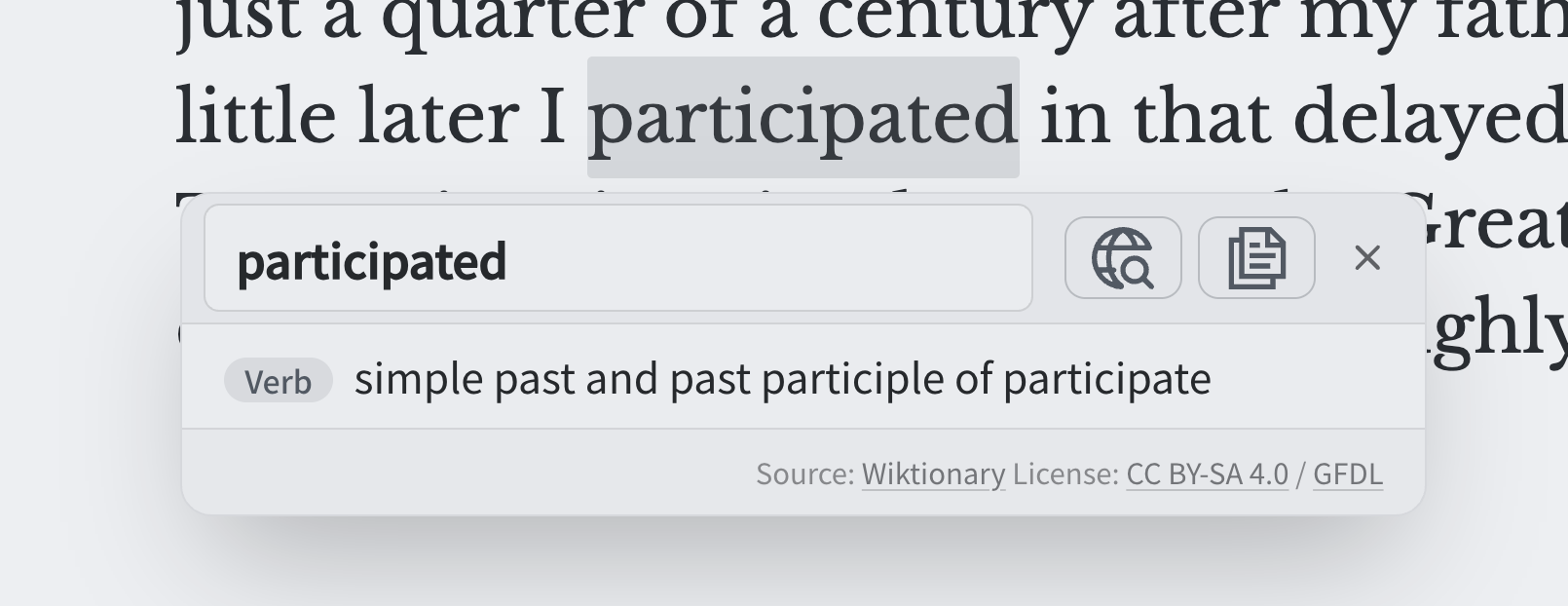
EXAMPLE
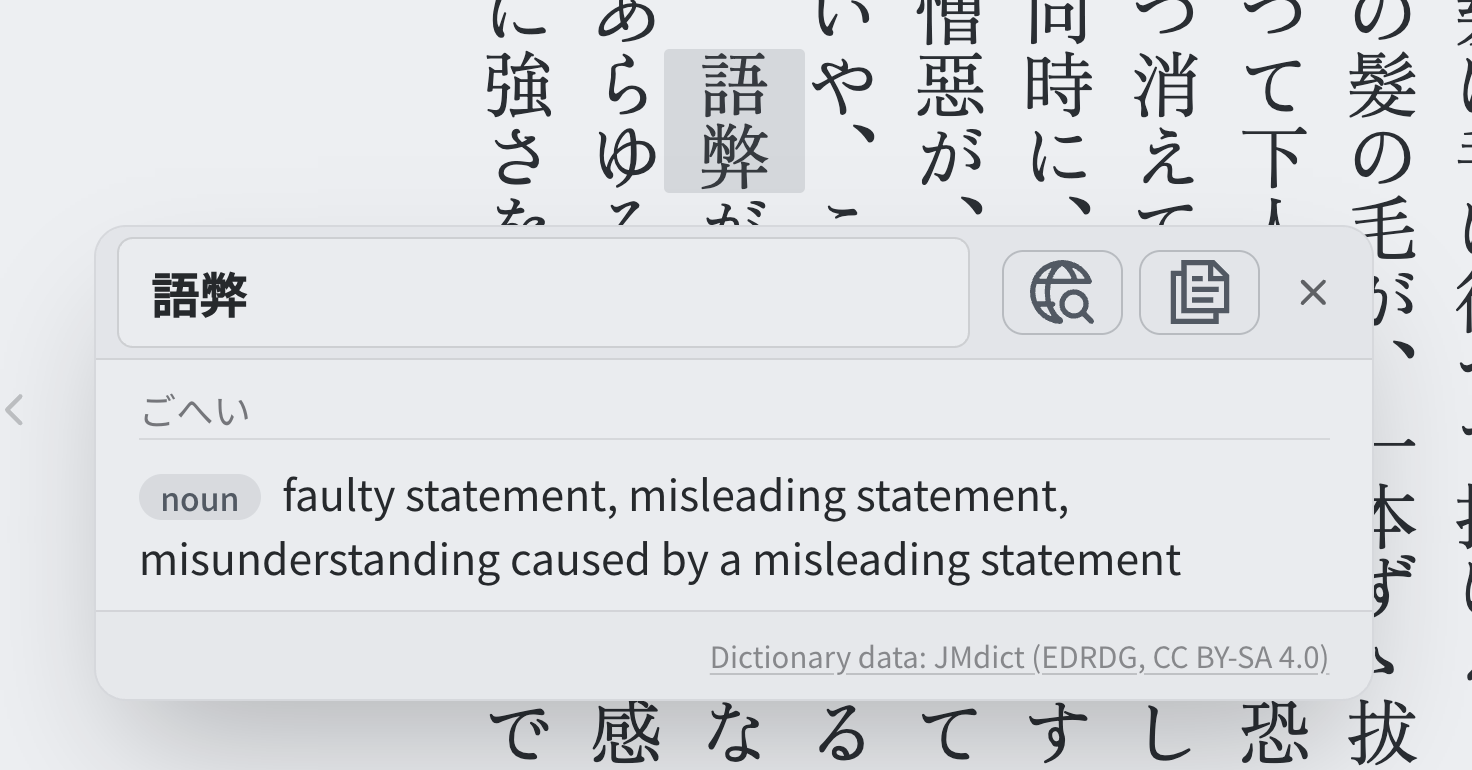
KEEP READING
The popup dictionary gives you a way to check a word while you read, rather than making every lookup a separate browsing task.
You do not have to study every unfamiliar word immediately. Start with words that block your understanding or keep appearing in the book. Check the meaning, then focus on the passage again.
The aim is not to turn every page into a vocabulary exercise. It is to make room for useful lookups while keeping the book itself at the center of the experience.
ENABLE THE DICTIONARY
Open Settings in the top navigation, then choose Default reading settings from the menu on the left.
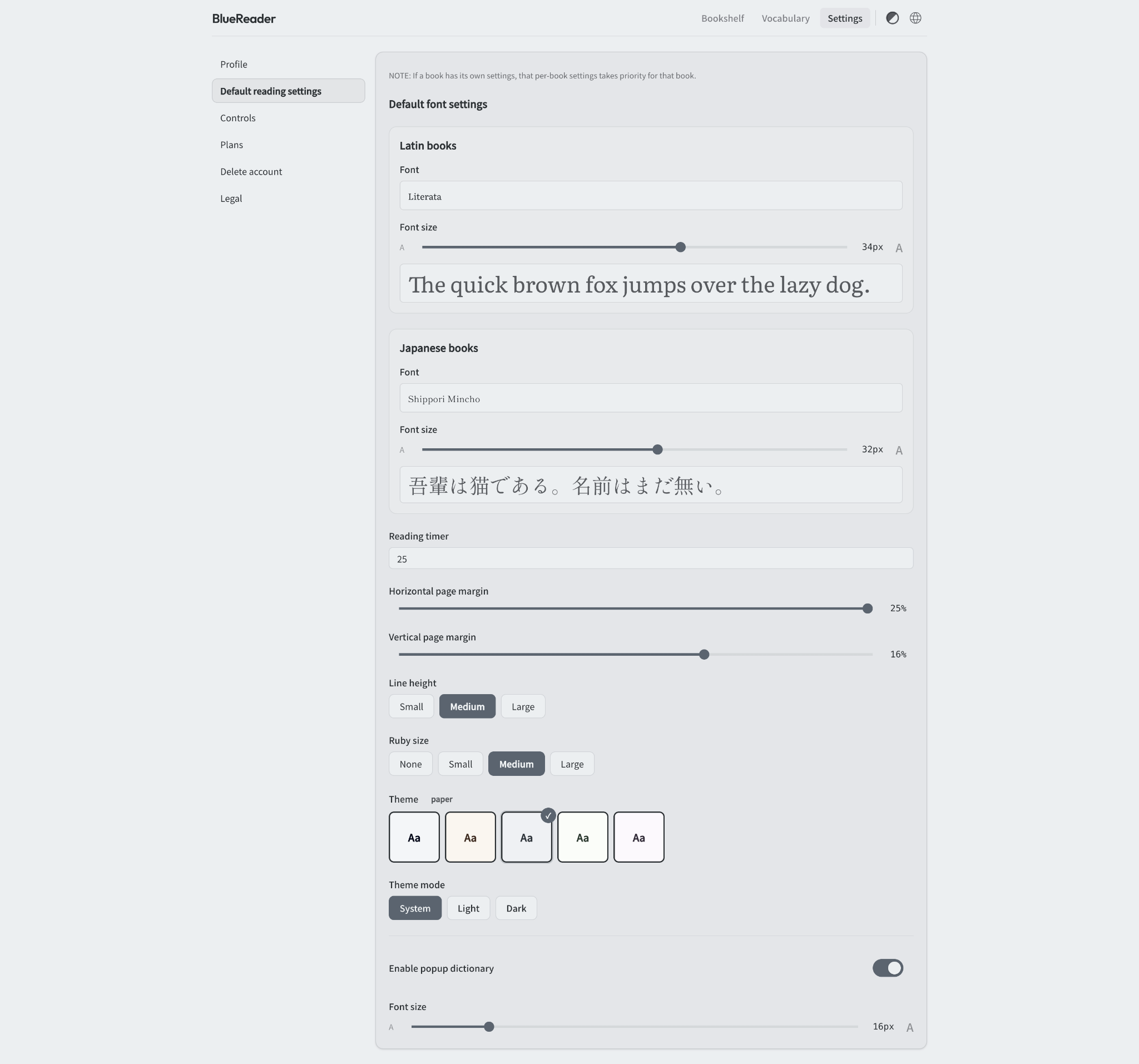
ENABLE OR DISABLE
Scroll to the bottom of the page and turn on Enable popup dictionary. Use the same switch to turn it off whenever you want to read without popup lookup.
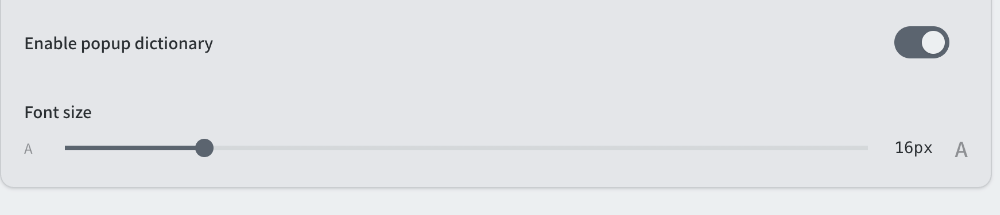
FONT SIZE
Use the Font size slider below the dictionary switch to adjust the text inside the popup. This is separate from the book-text size controls under Default font settings near the top of the page.
You can keep the book at a comfortable size while choosing a different size for dictionary text. The 16px value in the screenshot is an example from that session, not a required or recommended setting.
For other display preferences, including fonts and margins, see the default reading settings guide.
SAVE WORDS
BlueReader lets you save words you look up to your vocabulary collection. Flashcards are available for reviewing saved vocabulary.
One approach is to separate reading from review: check a meaning when you need it, save a word that matters to you, and review it later.
There is no need to collect every unfamiliar word. Recurring words and memorable expressions can be a useful place to start.
FEATURES
Double-click on desktop or press and hold on mobile to open the dictionary.
Keep words you want to review later while you are reading.
Enable or disable the dictionary and set its text size separately.
HOW IT WORKS
Double-click on desktop or press and hold on mobile.
Read the definition and source in the popup, then continue the book.
Add a word to your vocabulary collection and review it later.
FAQ
Sign in to BlueReader and upload an EPUB. After the file is processed on the server, open the book from your bookshelf. DRM-protected EPUB files are not supported. Use the dictionary when a word needs attention, turn it off when you want a simpler reading flow, and save vocabulary you want to revisit. Keep the reading session focused on the book, with word lookup close at hand.
Sign in to add an EPUB