Thumbnail size
Choose Small, Medium, or Large bookshelf covers.
CONTROLS
Change bookshelf thumbnail size, page turning, page-turn animations, and keyboard controls.
Unlike Default reading settings, which adjust how books look, control settings adjust how you operate BlueReader.
OPEN SETTINGS
Open Settings from the top navigation, then select Controls from the menu on the left.
THUMBNAILS
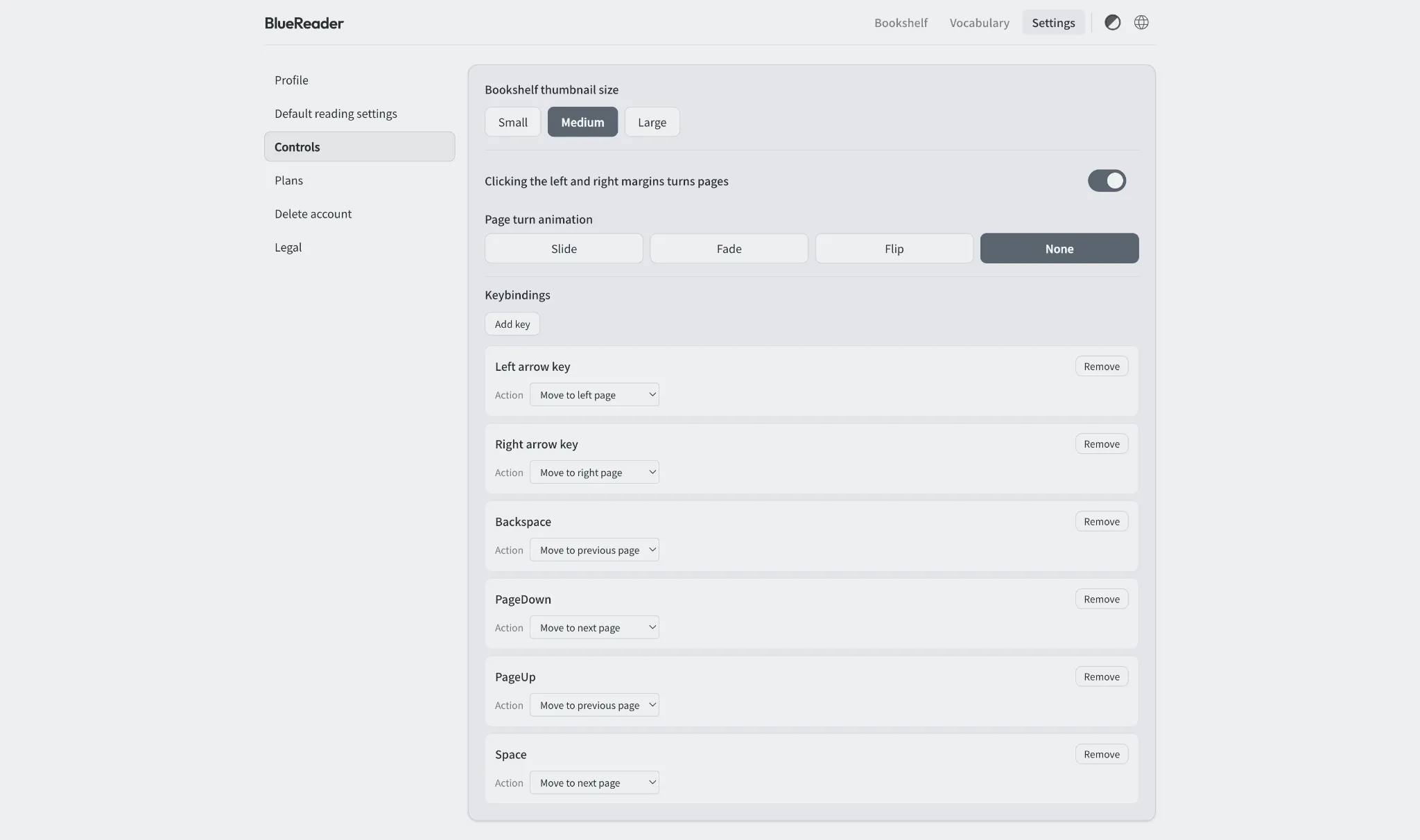
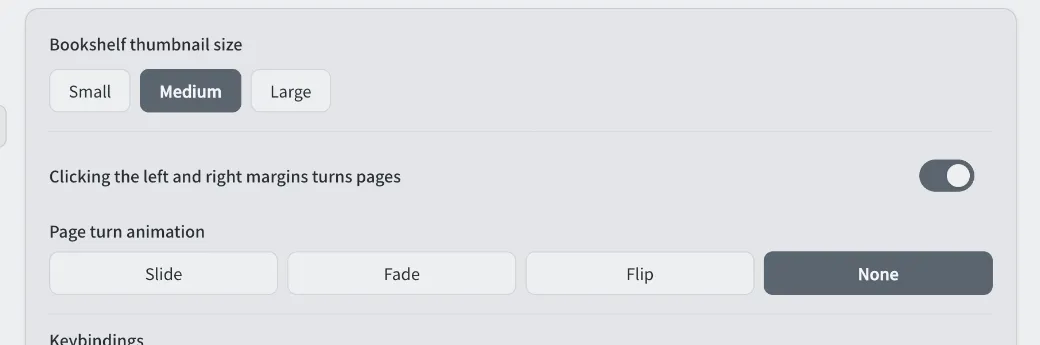
Bookshelf thumbnail size lets you choose Small, Medium, or Large for the book covers shown on your bookshelf. Use a smaller size to see more books on one screen, or a larger size when you want to inspect covers more closely.
MARGIN CLICK
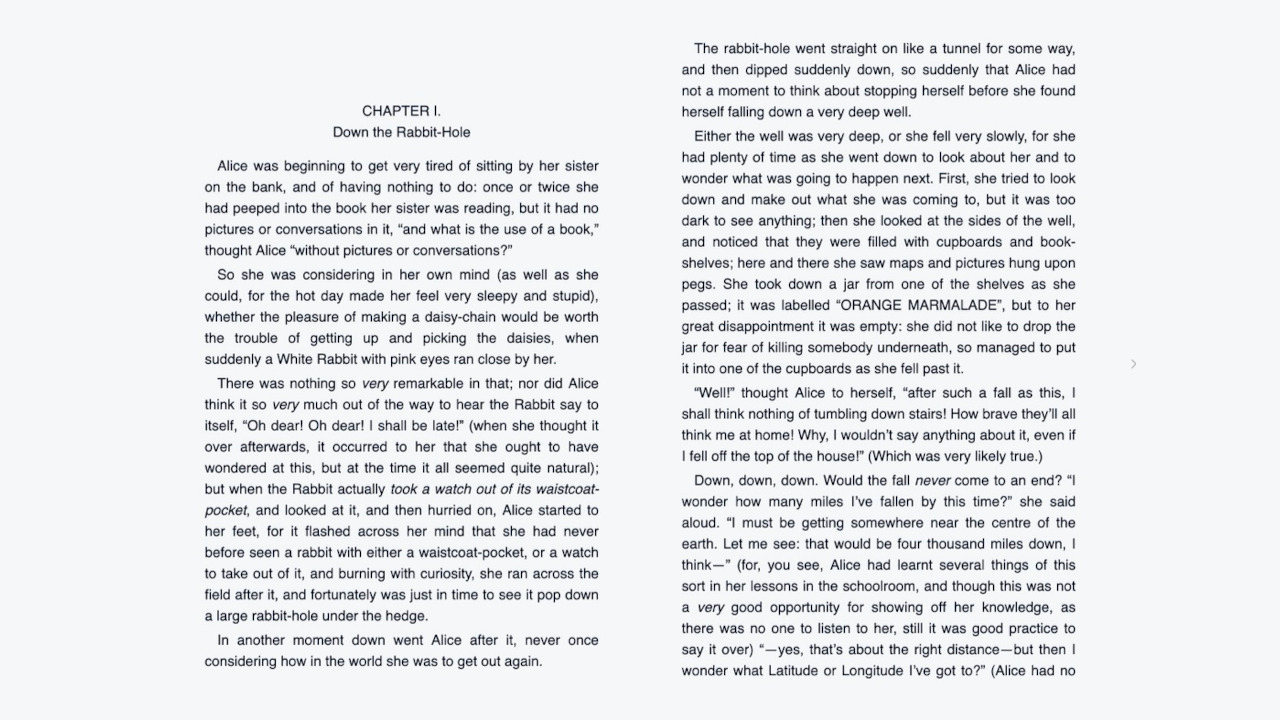
Turn on Click page margins to advance the page when you want to move through a book by clicking the left and right margins of the reading page. This is convenient when you read with a mouse.
ANIMATION
Page turn animation controls how the page changes when you move to the next page. The options are Slide, Fade, Flip, and None. Choose None when you want pages to switch instantly without animation.
KEYBINDINGS
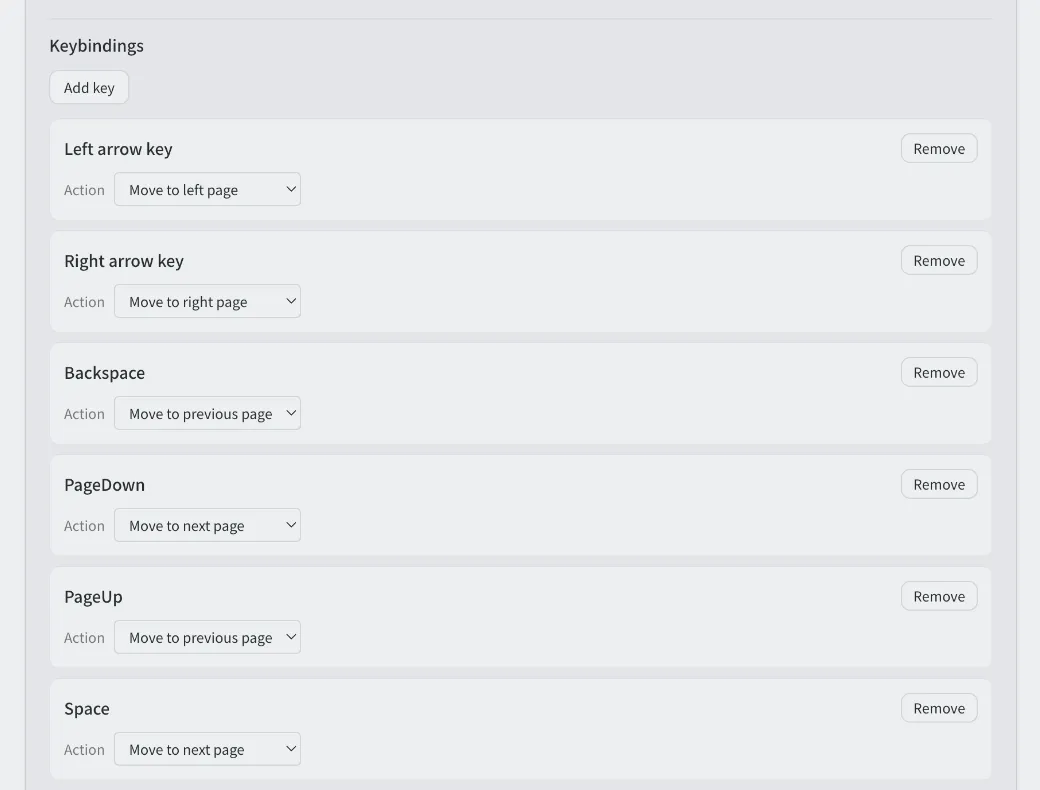
Keybindings let you assign BlueReader actions to keyboard keys. Use Add key to create a new keybinding, change the Action for each key, and remove keybindings you no longer need with Delete.
FEATURES
Choose Small, Medium, or Large bookshelf covers.
Move pages by clicking the left and right margins.
Choose Slide, Fade, Flip, or None.
Assign keyboard keys to BlueReader actions.
HOW IT WORKS
Select Controls from the settings menu.
Change thumbnail size, page turning, and keybindings.
Open a book and confirm the controls feel comfortable.
Make page turning and keyboard shortcuts match the way you read.

Tune page turning and keybindings for faster, more comfortable reading.
Start for free